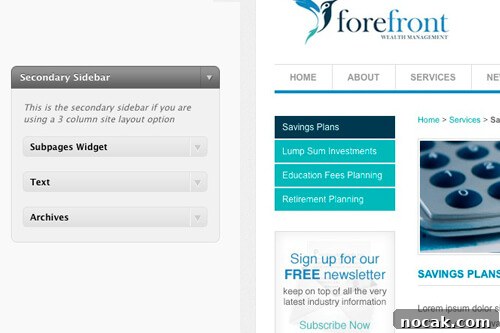
Once you’ve created a sidebar, you may want to add custom code to it. If no existing widget meets your needs, you have a few choices:
- Use a plugin that allows executing PHP inside widgets. Avoid this: a PHP error can lock you out of the admin area and make recovery difficult, often requiring database edits to remove the offending widget.
- Insert the code directly before or after the widget in a theme file or, when using frameworks like Thesis or Genesis, hook it into the theme. This works for content that should always appear at the top or bottom of a sidebar, but it lacks flexibility and prevents site editors from removing or configuring the output via the Widgets screen.
- Create a custom widget.
For a long time I used option #2, assuming building a widget was more trouble than it was worth for small snippets. After reading a detailed post about widgets by Justin Tadlock, I started building custom widgets instead.
Decide where to place widget code based on its intended scope. If a widget is specific to a single theme, include it in your theme files. If it could be useful across multiple themes or projects, build it as a plugin so you can reuse it later. Examples from past projects include:
- Theme-specific widget: navigation for a custom post type — for example, when viewing a Person page, list all posts in the People post type grouped by Role.
- General widgets: a Subpages widget and a Twitter widget. For the Twitter widget I adapted the official Twitter embed and wrapped it as a WordPress plugin so all options are manageable from the Widgets screen.
There are two main kinds of widgets you can create:
No Options Widgets
No-options widgets don’t present any settings on the Widgets page. When added to a sidebar they display the message “There are no options for this widget.” These widgets are ideal for simply outputting a piece of code or functionality without user configuration. An example is the Subpages widget.
The widget implementation follows a common pattern: first you register or load the widget at the appropriate time; then you define a class that extends WP_Widget so you can inherit WordPress’s built-in functionality and only add your custom behavior; finally the widget() method contains the output logic.
For the Subpages widget, the logic does the following:
- If the current page has a parent, gather the children of that parent. If not, gather the children of the current page.
- If any child pages exist, output them as an unordered list.
- Wrap the whole output with the theme-provided
$before_widgetand$after_widgetonly when there are children, preventing empty widgets from appearing. (Typically those wrappers appear at the start and end of the widget method.)
Widgets with Options
You can also build widgets with configurable options shown on the Widgets page. Extending WP_Widget makes this straightforward because you only need to implement two additional methods: form() to display the settings form, and update() to process and save user input.
Extending the Subpages widget to include a Title field illustrates the typical additions:
- In the widget() method you retrieve the saved title value so it’s available when producing output.
- After emitting
$before_widget, check whether the title is set. If so, output$before_title, the title itself, and$after_titleso it follows the theme’s styling. - The update() method sanitizes input (for example, stripping HTML tags from the title) before saving it.
- The form() method defines defaults, pulls in any existing saved values, and renders the input fields displayed on the Widgets page.
Building widgets this way gives you flexible, reusable components that site editors can manage directly from the Widgets screen, while keeping presentation consistent with the active theme. For an in-depth walkthrough and examples, consult the complete guide to creating widgets in WordPress 2.8 by Justin Tadlock.